How to Clone An App Using MT Manager?
If you’ve ever wanted to run two accounts of the same app on your Android phone, you’ve probably thought about cloning. By default, Android doesn’t allow you to install the same app twice. But with the help of MT Manager, you can actually make a clone of almost any app and install it alongside the original.
In this article, I’ll explain what app cloning means, why people use it, the benefits and limitations, and step-by-step how to clone an app using MT Manager. I’ll also cover frequently asked questions, a disclaimer, and a conclusion so you’ll know exactly what’s safe and possible. Let’s get started.
What Does Cloning an App Mean?
Cloning an app means creating a duplicate copy of an APK file so that it behaves like a completely separate application on your device. Normally, every Android app has a unique package name. Android uses this package name to identify the app. Two apps with the same package name cannot exist together on one device.
So, cloning basically involves editing the APK file to change the package name, app name, and sometimes the app icon. After signing and reinstalling, you now have two apps on your device: the original and the clone. They don’t interfere with each other, and you can log in with different accounts on each.
Why Use MT Manager for Cloning?
There are many Android tools out there, but MT Manager is one of the most popular because it’s powerful, lightweight, and doesn’t always require root. It allows you to open APK files, edit resources, change names, replace icons, and sign the new APK all directly on your phone. You don’t need a computer, and the process is much simpler once you get used to it.
Some people use MT Manager to modify apps in other ways (like editing strings or customizing layouts), but here we are focusing only on safe and personal cloning.
Common Uses of Cloning Apps with MT Manager
So why would someone want to clone an app? Here are the most common reasons:
Running Multiple Accounts
The most popular use. People want to run two WhatsApp, Facebook, or Instagram accounts on one device without switching back and forth.
Testing Different Builds
Developers and testers may need to install different versions of the same app side by side to compare features.
Customization
By cloning, you can change the icon or app name to make a personalized version that looks different in your launcher.
Backup Purposes
You can keep a cloned copy of the app in case the original gets updated and removes a feature you like.
Learning and Practice
Beginners who want to learn APK editing or understand app structure often start with cloning because it’s relatively simple.
Features of Cloning Apps with MT Manager
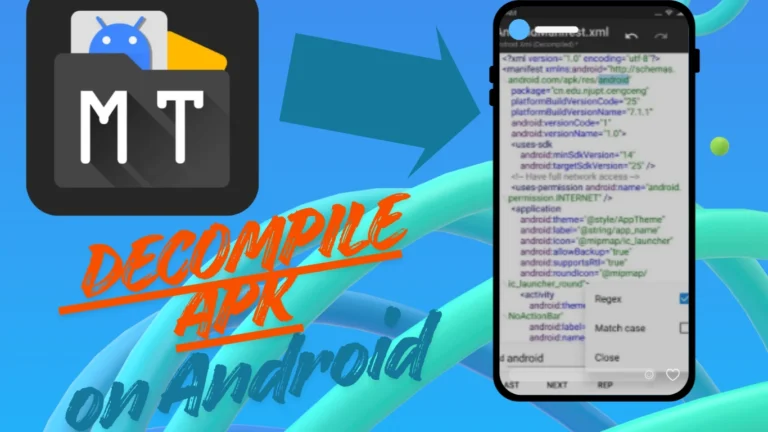
APK Editing Tools – Easily open the APK and edit important files like AndroidManifest.xml.
Rename & Rebrand
Change app name and icon so your clone doesn’t look identical to the original.
Side-by-Side Installation
Both apps can be installed and used at the same time without conflicts.
Built-in APK Signing
MT Manager has a signing tool, which is necessary for installation.
Non-Root Friendly
Works on non-root devices, so you don’t have to risk rooting your phone.
Resource Editing
Replace images, icons, and even text inside the app.
Fast & Lightweight
The cloning process doesn’t take long and doesn’t require a computer.
How to Clone an App Using MT Manager
Now let’s walk through the actual process in simple steps:
Backup the Original App
First, use MT Manager to export the APK of the app you want to clone. This is important in case something goes wrong.
Open the APK in MT Manager
Navigate to the APK file in MT Manager and select Apk Editor.
Change the App Name
Replace the Icon (Optional but Recommended)
Go to the res/mipmap folders and replace the icon files with different images.This helps you easily tell the difference between the original and the clone.
Rebuild the APK
Use MT Manager’s “Build/Recompile” option. This will generate a modified APK file.
Sign the APK
The cloned APK must be signed before installation. Use MT Manager’s built-in Sign APK feature.
Install the Clone
Once signed, tap the APK and install it. Now you should see both the original app and the cloned version on your home screen.
FAQs About Cloning Apps with MT Manager
Disclaimer
This guide is for educational and personal use only. Cloning apps without permission, especially paid apps, is illegal and may violate copyright law or app terms of service. Do not use this method for piracy, cheating, or fraud. Also, note that cloned apps may not work properly if they rely on special security checks or Google Play services. You take full responsibility for how you use this information.
Conclusion
Cloning apps with MT Manager can be very handy for people who want to run multiple accounts, customize their apps, or test different builds without interfering with the original installation. By simply changing the package name, app name, and icon, you can create a fully independent app that runs side by side with the original.
However, keep in mind that cloned apps won’t update automatically from the Play Store, and some apps with heavy security may not work at all. Use cloning responsibly, only for your own apps or for learning, and avoid distributing modified APKs.
When used the right way, MT Manager gives Android users a lot of freedom and flexibility. If you often need multiple accounts or like customizing your apps, cloning with MT Manager is one of the easiest and most effective solutions available today.